Navigation bar tour
The navigation bar is the same on every page. Here's what each piece does and which roles see it.
The nav, top to bottom (well, left to right)

| Element | What it does | Who sees it |
|---|---|---|
| HypothesisLab logo | Click to go to your dashboard. | Everyone |
| Team switcher | Shows your active team and role. Click to switch teams, or to start a new one. | Anyone on at least one team |
| My Dashboard | Your personal hypothesis lists and calibration headline. | Everyone |
| My Calibration | Your detailed calibration breakdown. | Everyone |
| Team Dashboard | Aggregated team stats, attention list, confidence calibration. | Head of Product only |
| Library | Resolved hypotheses across the whole team (private excluded). | Everyone |
| + New Hypothesis | Start the creation flow. | PM and HoP (Reviewers don't write) |
| Avatar (initials) | Opens the user menu. | Everyone |
Reviewers see the same tabs as PMs, but the + New Hypothesis button is hidden for them — Reviewers can read and comment but not create.
The HoP nav has an extra Team Dashboard tab. PMs and Reviewers don't see it.

The team switcher
Immediately to the right of the logo, you'll see the team switcher. It shows your active team and the role you have on it.

Click it to open. The menu lists every team you're a member of (with the active one marked with a violet dot), plus a + Create new team link at the bottom.
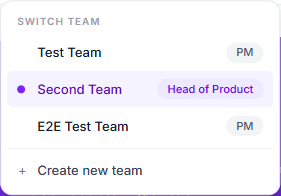
Clicking a team row switches you to that team. The full mechanics — what happens to the page you're on, what role you land in, how the lobby fits in — are covered in Switching between teams.
The user menu
Click your initials in the top-right to open it.
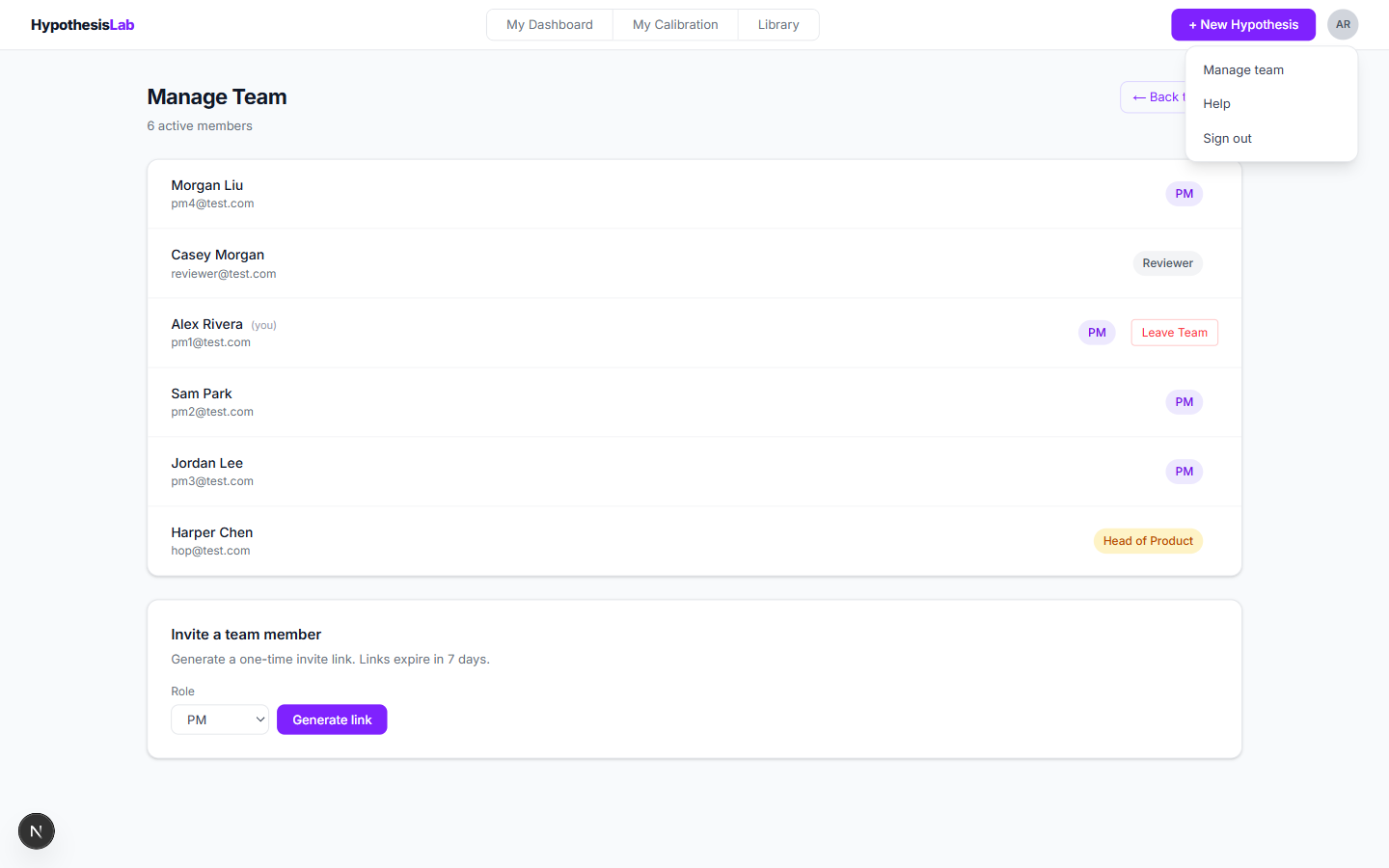
- Manage team — opens
/team/manage. PMs and HoPs land on the management page; Reviewers land on a read-only view. - Help — opens this user manual at
/help. - Sign out — ends your session and returns to the sign-in page (one click — no extra confirmation step).
The + New Hypothesis button
The most-clicked button in the system. Always available in the top-right.
It opens the template picker (the first step of the creation flow). For the full creation walkthrough, see Creating a hypothesis.
Page-specific bars below the nav
A second strip appears under the nav on most pages — the tag filter bar. It's not part of the nav itself; it scopes the page you're already on. The same bar appears on the Dashboard, Calibration, Library and Team Dashboard.
Each pill shows the tag name and a count of matching hypotheses for the current page. If you have more tags than fit on one row, a More N ▾ button at the end opens a popover with a search box and the full list.

Previous: Joining a team via invite ← Next: Creating a hypothesis →