Switching between teams
You can belong to more than one team in Hypothesis Lab. The team you're "in" at any given moment is your active team — every page (your dashboard, calibration, library, team dashboard) shows data scoped to that team. Switching teams swaps the lens.
When does this matter?
Most users only have one team and can ignore this page. The team switcher only appears in the nav when it has something useful to show — which means it shows up whenever you're on a team.
You'll care about this page if:
- You're a PM on one team and a Head of Product on another.
- You consult or advise multiple product teams.
- You're spinning up a new team alongside your existing one.
Your role can be different on each team. For example, you can be a PM on Team A and a Head of Product on Team B — the HoP singleton rule is enforced per team, not per user.
The team switcher
The team switcher sits in the nav, immediately to the right of the HypothesisLab logo. It shows the active team's name and your role on that team.

Click it to open the menu. Every team you belong to is listed; the active one is marked with a violet dot.
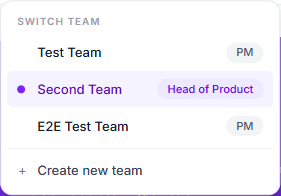
Each row shows the team's name and your role on that team. Click a row to switch. The bottom row, + Create new team, takes you to the lobby where you can spin up another team.
What happens when you switch
When you click a different team:
- The system records the new active team on your account.
- Your session refreshes so the nav shows the new team and role.
- You stay on the same page when it makes sense, or fall back to the role's home page when it doesn't.
The "stay on the same page" logic is deliberately narrow:
- You stay on team-scoped pages whose data simply reloads under the new team: My Dashboard, My Calibration, Library, Team Dashboard (if your new role is HoP), Manage Team, and the New Hypothesis template picker.
- You go to role home when the URL is tied to a specific hypothesis or team member ID, because that ID belongs to the old team. The hypothesis detail page, the resolve flow, and the Transfer HoP confirmation page all fall back to your dashboard (PM/Reviewer) or the Team Dashboard (HoP).
- You go to role home when the destination requires a role you don't have on the new team — e.g. you were on the HoP-only Team Dashboard and you switch to a team where you're a PM.
Creating another team
Two ways to get there:
- From the team switcher: open it and click + Create new team.
- From the lobby directly:
/lobbyalways lets you create a team.
Either way you land on the lobby's Create a team form. Pick a name, pick your role (Head of Product or PM), click Create team. The new team immediately becomes your active team, and the switcher shows all your teams including this one.
The lobby as a hub
Before, the lobby was something you only saw if you weren't on a team. Now it's a hub for anyone with one or more memberships.
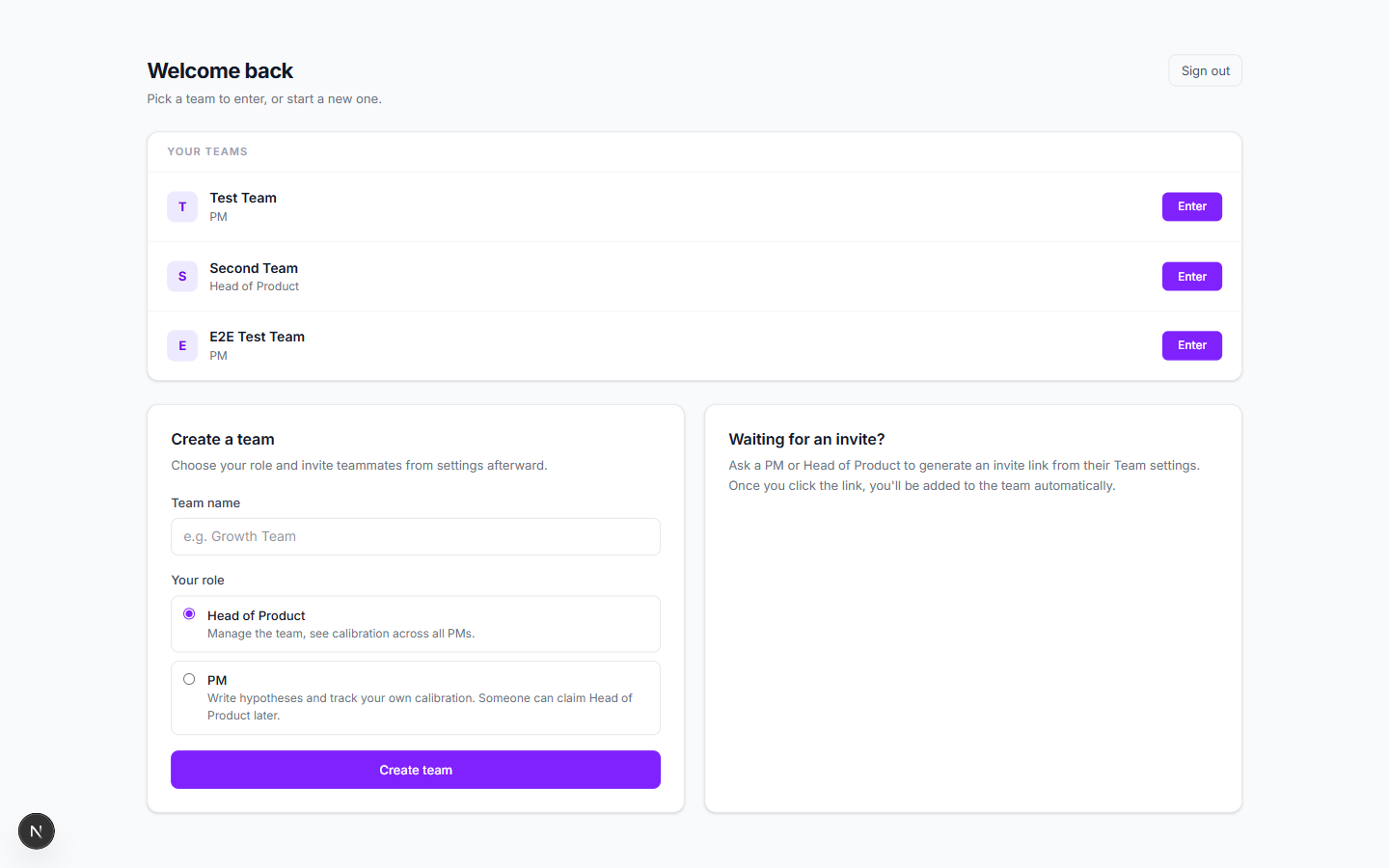
The Your teams list shows every team you're a member of, with your role and an Enter button that switches you to that team and drops you on its role home. The Create a team form below lets you start a new one.
Leaving a team you're active on
If you leave a team that's currently your active team (via the Leave Team button on Manage Team, or by being removed by an HoP), your active team is cleared. The next time the app needs to route you, it sends you to the lobby so you can pick another team — it doesn't silently teleport you into a different team you happen to be on.
A few rules worth knowing
- The active team is stored on the server, not in a cookie or local storage. Switch on one device and the next device you sign in on picks up the same active team.
- The team switcher renders for users with one or more memberships, so you always have a visible "+ Create new team" affordance and a way to confirm which team you're on.
- Per-team roles are independent. Stepping down or being removed on Team A has no effect on your role on Team B.
- Invite links are team-scoped. Redeeming one adds you to that specific team and makes it your active team; it doesn't change your role on any other team you're on.
Previous: How calibration is scored ←