Managing the team
The Manage Team page is HoP-only. It's where you add and remove members, change their role, and (rarely) hand the HoP role to someone else. You get to it from the Team Dashboard or directly at /team/manage.
The team has exactly one Head of Product, enforced at the database level. There's no way around this — even the system admin can't create a second.
Member list
Every active member of the team appears in a row with their name, email, current role, and action buttons. Your own row is marked (you) and shows a different set of actions.

For each PM or Reviewer, you can:
- Make Reviewer / Make PM — flip the role. A confirmation dialog asks you to confirm before the change is saved.
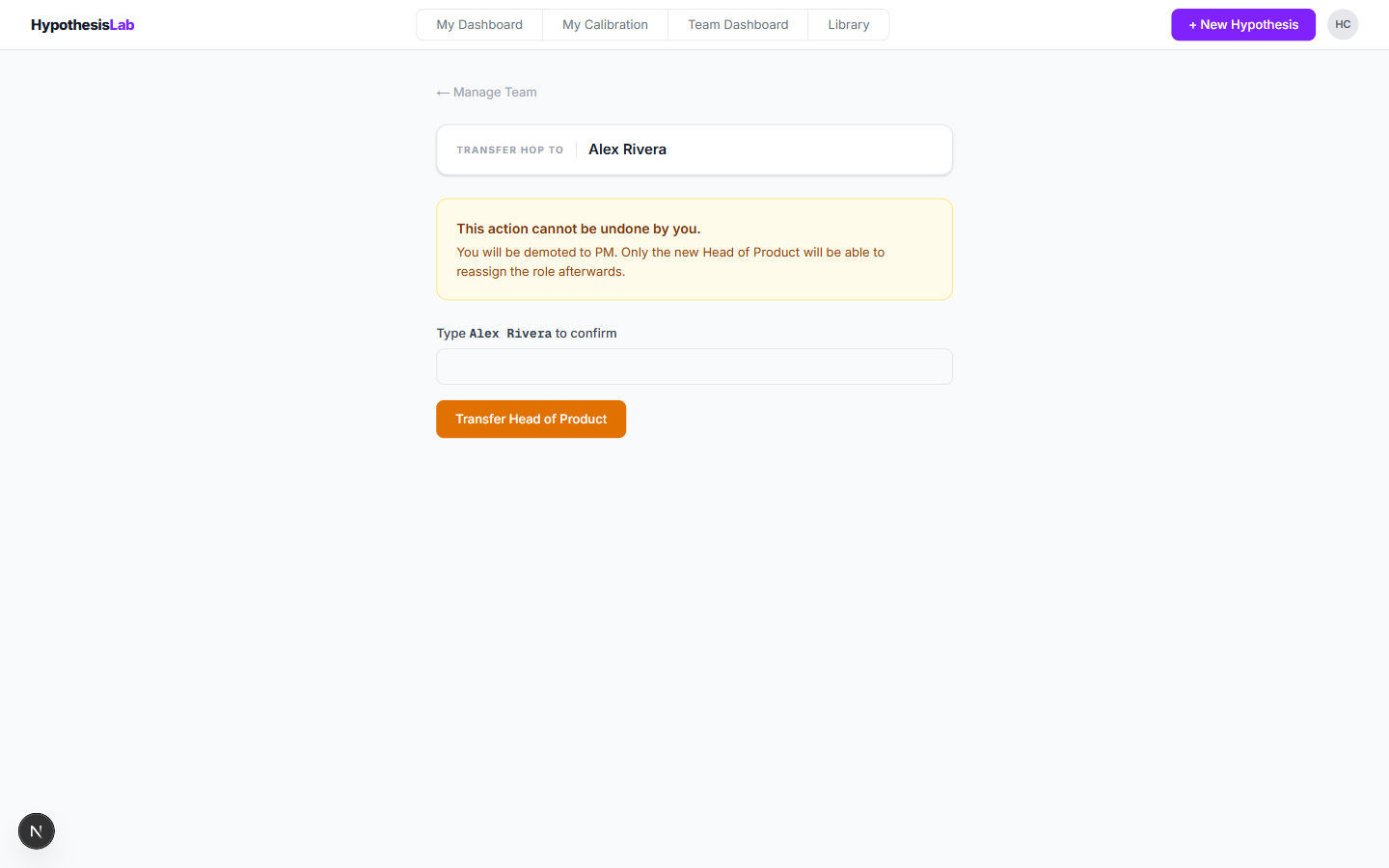
- Transfer HoP — open a dedicated page that requires you to type the new HoP's full name to confirm, because transferring is destructive (you immediately become a regular PM, and only the new HoP can hand it back). See the screenshot below.
- Remove — take them off the team. A confirmation dialog asks first. Their hypotheses stay (marked as belonging to a former member); their access ends. If they were currently active on this team, their active team is cleared and the lobby greets them the next time they sign in.
Your own row (HoP)
Your own row shows three controls instead of the standard set:
- Step Down to PM — drop the HoP role and stay on the team as a regular PM. Only works if there's another HoP available, because the singleton constraint forbids zero HoPs. In practice this means Transfer HoP first, then you'll have the option.
- Step Down to Reviewer — same as above, but to read-only status.
- Leave Team — leave the team entirely. Same precondition: someone else must be HoP first. After you leave, if this was your active team, you land on the lobby and pick another team to enter.

Inviting a new member
The invite panel lives at the bottom of the page.
- Pick a Role (PM or Reviewer) from the dropdown.
- Click Generate link.
The system creates a one-time invite link valid for 7 days, scoped to the role you picked.

The link appears below the form with a Copy button. Share it with the person you're inviting — Slack, email, whatever.

One link per person. Generate a separate link for each invitee — they're one-time use, so reusing the same link won't work and you'll have to repeat the request.
A few constraints worth knowing
- You can't demote yourself directly — you must transfer HoP first.
- Transferring HoP requires typing the new HoP's name; it isn't a single click. This is intentional — it's the most consequential action on the page.
- Removing a PM doesn't delete their hypotheses; their work stays in the library and is attributed to them as a "former" member. The Team Dashboard's Include former PMs toggle controls whether they show on the team views.
- The HoP can't be set to a Reviewer directly. If you want to leave the team or step right down, you transfer HoP first, then step down.
Previous: Team Dashboard ← Next: Roles and permissions →