Team Dashboard
The Team Dashboard (Team Dashboard in the nav) is the Head of Product's home page. PMs and Reviewers don't see this nav link — it's HoP-only. When an HoP signs in, this is where they land by default.
It exists to answer two questions: who needs my attention this week? and is the team getting better at predicting over time?
At a glance
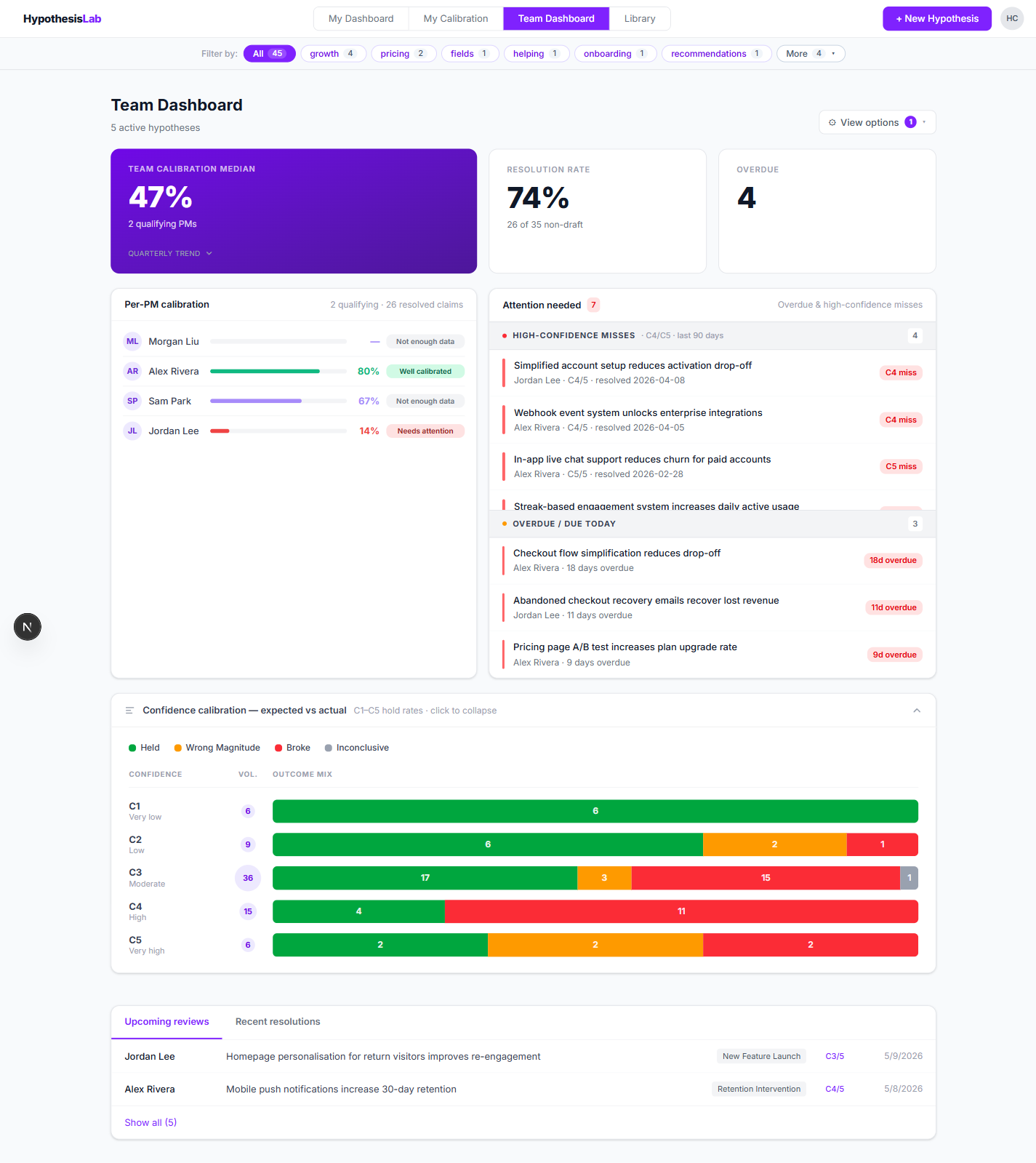
The page has six sections, top to bottom:
- Tag filter bar — same as elsewhere, scopes the page to one tag.
- Three KPI cards — team calibration median (highlighted), resolution rate, overdue count.
- Per-PM calibration — every active PM with a status pill (left side).
- Attention needed — high-confidence misses and overdue/due-today reviews (right side).
- Confidence calibration ribbon — expected vs actual hold rate at each confidence level.
- Upcoming reviews / Recent resolutions — what's coming and what just landed.
1. KPI cards
A three-card row at the top of the page. The first card is highlighted in violet because it's the headline number for the team:
- Team calibration median — the median PM's hit rate, across PMs with at least 5 resolved claims (PMs under that bar don't qualify). The Quarterly trend ▾ expander inside this card shows the same number across recent quarters.
- Resolution rate — share of non-draft hypotheses that reached a resolved state. A low number means the team writes hypotheses but doesn't close them.
- Overdue — count of hypotheses past their review date with no resolution.

2. Per-PM calibration
A bar per PM showing their hit rate, with a status pill on the right. Pills are computed mechanically from sample size and accuracy:
- Well calibrated — solid sample, hit rate ≥ a healthy threshold.
- Needs attention — solid sample, hit rate below threshold.
- Not enough data — fewer than 5 resolved claims; can't yet make a claim about calibration.
The list is filtered by visibility — private hypotheses never count toward team stats.
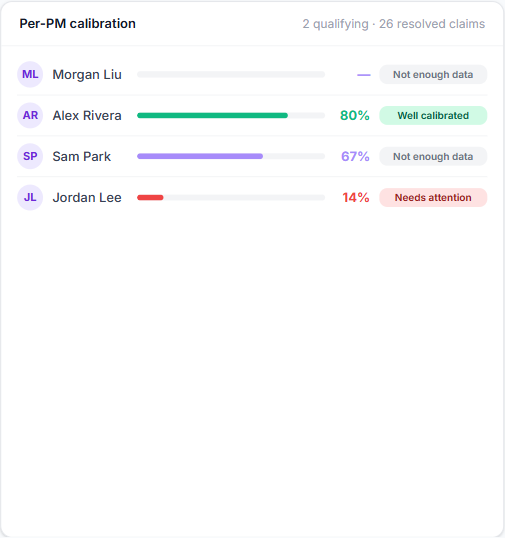
Why no clickable drill-down? Per design, opening up an individual PM's calibration here would tempt managers to optimise the PM toward a number. The personal My Calibration page is the PM's own tool. The team dashboard surfaces the outcomes that matter to the team, not a manager's score sheet.
3. Attention needed
This is the most actionable panel on the page. The header pill shows the total count of items needing attention. The card has two bounded sections, each with its own count and its own scroll:
- High-confidence misses (C4/C5, last 90 days) — hypotheses where a PM was very confident and was wrong. These are the bets where calibration breaks down most expensively. Click any item to read the resolution notes.
- Overdue / due today — published hypotheses past their review date.
Click any row to open the underlying hypothesis.
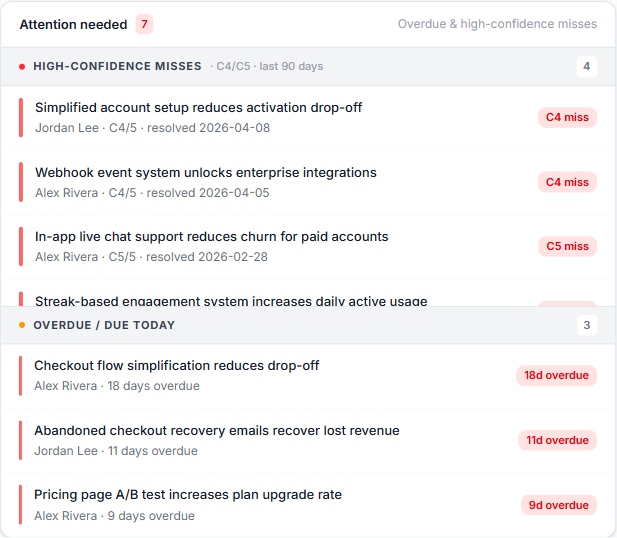
HoP rhythm: scan this panel weekly. The top three high-confidence misses tell you where to coach.
4. Confidence calibration ribbon
The most diagnostic chart in the system. For each confidence level (C1–C5), it shows the outcome mix of all team claims that were predicted at that level — green for Held, amber for Wrong Magnitude, red for Broke, grey for Inconclusive.
A well-calibrated team looks like a staircase: very-low predictions are mostly green (you said long-shot, it was a long-shot — but oddly high green is ok at C1 because very low is rare and people use it for sandbag bets), C3 should be roughly half green half red, and C5 should be mostly green (you said very high, it should hold).
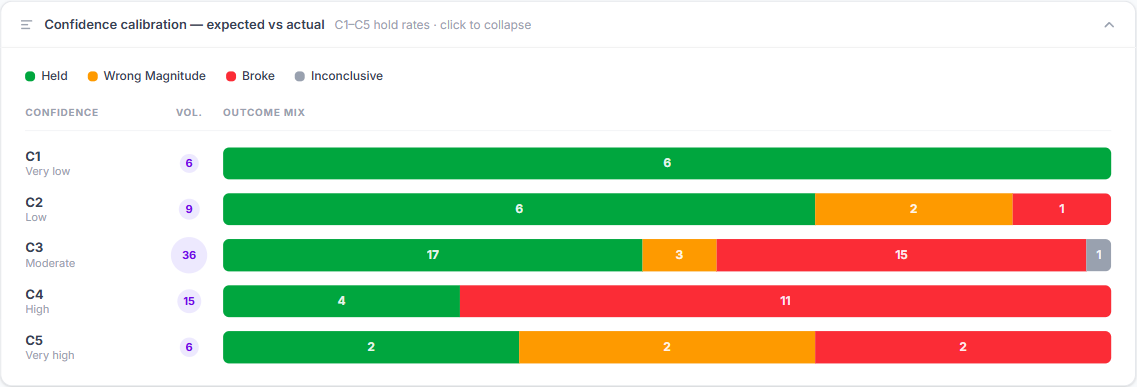
Read it like this: if C4 (High) is mostly red, the team is overconfident. The cure isn't telling everyone to lower their numbers — it's pre-mortem discipline.
The ribbon is expanded by default and can be collapsed by clicking its header.
5. Upcoming reviews / Recent resolutions
A two-tab panel at the bottom. Upcoming reviews shows the next hypotheses due. Recent resolutions shows what just closed. Both are clickable.

View options
The cog button at the top-right opens view options. Toggles include including former PMs (off by default).
Previous: The Learning Library ← Next: Managing the team →